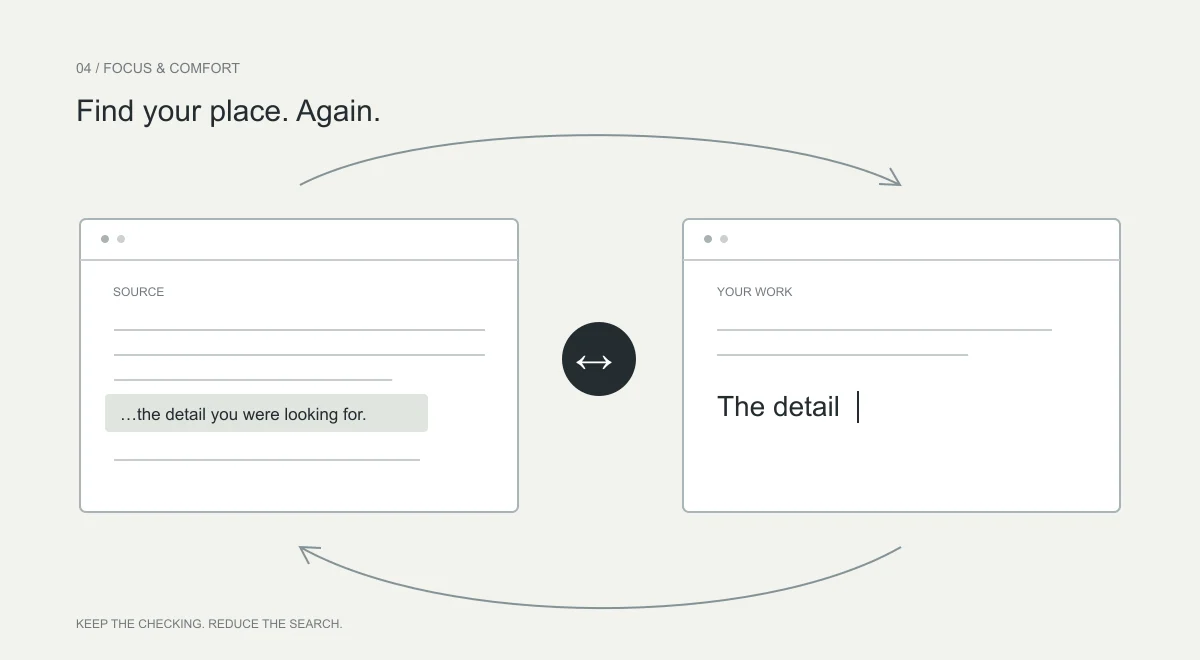
The return trip takes attention.
You read part of a reference, switch to your notes and begin writing. Then you need the next phrase. Back in the document, you find the paragraph, the line and the exact point where you stopped. The typing may take seconds. Re-establishing your place is another part of the work.
After enough repetitions, that left-right routine can feel exhausting. You do not need a stopwatch to notice that the work has become uncomfortable. Taking that experience seriously means looking at the whole setup: repeated searching, text size, posture, long periods of near work and the breaks you actually take.
The same pattern appears with an invoice and a form, a report and a spreadsheet, or course material and an assignment. Not every glance is a problem. Checking the source is often essential. The avoidable part is repeatedly searching for information you have already located.
That distinction matters. The goal should not be to look at the original as little as possible. It should be to make the original easier to consult without losing the task you were doing.
What the research actually shows.
In controlled experiments, Rubinstein, Meyer and Evans found time costs when participants alternated between tasks. Those costs increased with more complex rules and decreased when cues helped identify the next task. The experiments involved classification and arithmetic tasks, not people using Relayne or copying from PDFs. Rubinstein, Meyer & Evans, 2001.
Changing an application and changing a mental task are not identical. Looking from a source to a destination can be part of one continuous task. It would therefore be misleading to assign every Alt-Tab a fixed recovery time or turn a laboratory result into a percentage of productivity “lost” at your desk.
What you can inspect directly is your own workflow: how often you must search again, whether you lose the current row and how much correction is needed. These are more useful observations than a dramatic statistic borrowed from an unrelated study.
Keep the checking. Remove the unnecessary search.
Screen comfort is a separate question.
Extended screen use can be uncomfortable. The American Optometric Association describes digital eye strain as a group of eye- and vision-related symptoms associated with prolonged use of digital devices. It identifies viewing conditions and uncorrected vision problems as relevant factors. This does not establish that window switching itself damages eyesight. American Optometric Association.
Comfort matters even when the work gets done correctly. If the routine leaves your eyes tired, that experience deserves attention, not dismissal. Relayne aims to reduce repeated searching by keeping relevant source information near your work. We have not demonstrated a medical benefit from Relayne; a more convenient layout still needs real breaks from near work.
The AOA suggests the 20-20-20 routine: every 20 minutes, look at something about 20 feet away for 20 seconds. It is practical eye-care guidance, not a treatment guarantee or a Relayne feature. Persistent eye pain, blurred vision or recurring headaches warrant advice from an eye-care professional. American Optometric Association.
Blue light is not the whole explanation.
Screen discomfort is real, but “blue light” has become a catch-all explanation for it. A 2023 Cochrane review of 17 randomised trials found that blue-light filtering lenses may not reduce short-term computer-related eye strain compared with non-filtering lenses. The evidence had limitations; it does not mean that discomfort is imaginary or that every vision problem has the same cause. Cochrane, 2023.
Rather than treating a filter or an app as the complete answer, address the conditions of the work. Keep text readable, reduce uncomfortable glare, take breaks and seek professional advice when symptoms persist. Better software can remove needless effort. It should not encourage people to ignore pain.
Make the workspace easier to use.
Start with legibility. If the only way to fit both windows is to make the text uncomfortably small, a side-by-side layout has solved one problem by creating another. Zoom to a readable size and show the relevant section rather than the entire page.
Position the work you use most often so that you do not spend the session twisted toward it. The UK Health and Safety Executive recommends a central screen and keyboard, with the screen roughly an arm’s length away and its top around eye level. Its advice is general workstation guidance, not a finding that two monitors are harmful. UK Health and Safety Executive.
Keep the relevant parts visible.
Use two readable windows, a source excerpt or an appropriate reference aid. Avoid shrinking everything just to fit.
Arrange for the actual task.
Put the main work in front of you. Adjust the setup if frequent references require an awkward posture.
Short, regular changes of activity matter too. HSE recommends frequent short breaks over less frequent long ones and advises movement or a change of posture. A smoother workflow should make room for breaks, not become a reason to work without them. UK Health and Safety Executive.
Check the difference for yourself.
Choose a short, non-confidential task you perform regularly. Try it with your usual layout and then with a more readable arrangement or reference tool. Keep the checking standard the same.
- Count the searches.
Note when you must find the source line or record again, rather than simply glance at it.
- Count the corrections.
Record missed details and mistakes found during review. Finishing quickly is not enough if the result needs repair.
- Notice the setup.
Was the text readable? Did you lean, twist or keep losing the relevant window? Treat discomfort as a reason to adjust, not push through.
This is a practical comparison, not a controlled study. Familiarity and task difficulty can affect the result. Repeat with similar work before deciding a change helps, and do not generalise one person’s timing into a promise for everyone.
Keep the original close, not out of sight.
Text Follow is designed to keep original source words beside your writing in supported workflows. Form Assist addresses the equivalent problem with document values and form fields. Both aim to make the relevant information easier to consult while you work.
That is a workflow benefit to evaluate in your own setup, not a claim of clinically proven eye-strain relief or a guaranteed number of minutes saved. Keep checking the original context, take breaks and use the arrangement that genuinely works for you.
Less searching is worthwhile when it leaves more attention for understanding the information. The aim is not simply to type for longer.
Sources & further reading.
Research and guidance inform this article. They do not establish Relayne’s effectiveness. Product descriptions follow the current demonstrations and privacy explanation.
- Executive control of cognitive processes in task switchingRubinstein, Meyer & Evans, 2001
- Computer vision syndrome and digital eye strainAmerican Optometric Association
- Blue-light filtering spectacle lenses: evidence from randomised trialsCochrane, 2023
- Good posture when using display screen equipmentUK Health and Safety Executive
- Display screen equipment: work routine and breaksUK Health and Safety Executive
Research checked 8 October 2026. Have a correction? Tell the Relayne team.